Add a Person to a Photo
Add a missing person to an existing photo, or combine people from separate photos into one natural group shot with the AI group photo maker.
Free on the shared queue · No subscription · Nothing stamped on your result
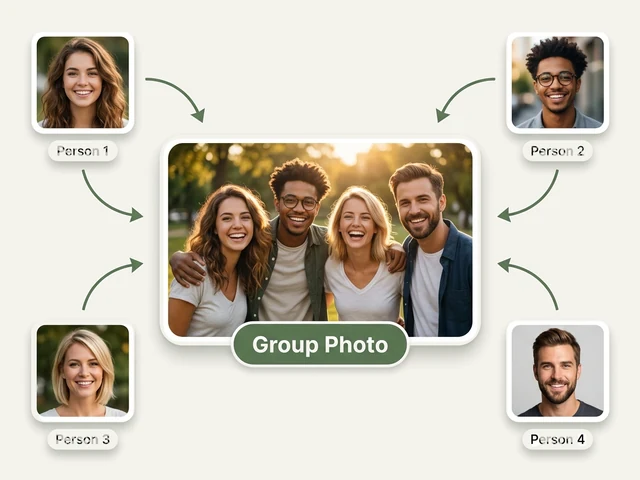
The AI Group Photo Maker brings people from separate photos together in one natural group shot. It has three modes: combine two people into a new photo, add someone to a group photo they missed, or merge two group photos into one.
It solves the classic problem of the person holding the camera never being in the picture, and of family and friends who could not make it to the same event. You choose the arrangement, the occasion and the background, and the AI matches lighting and scale so everyone looks like they were there.
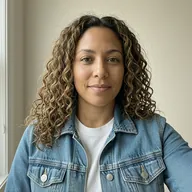
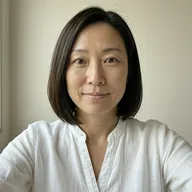
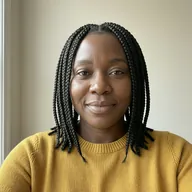
Add a Person to a Photo examples
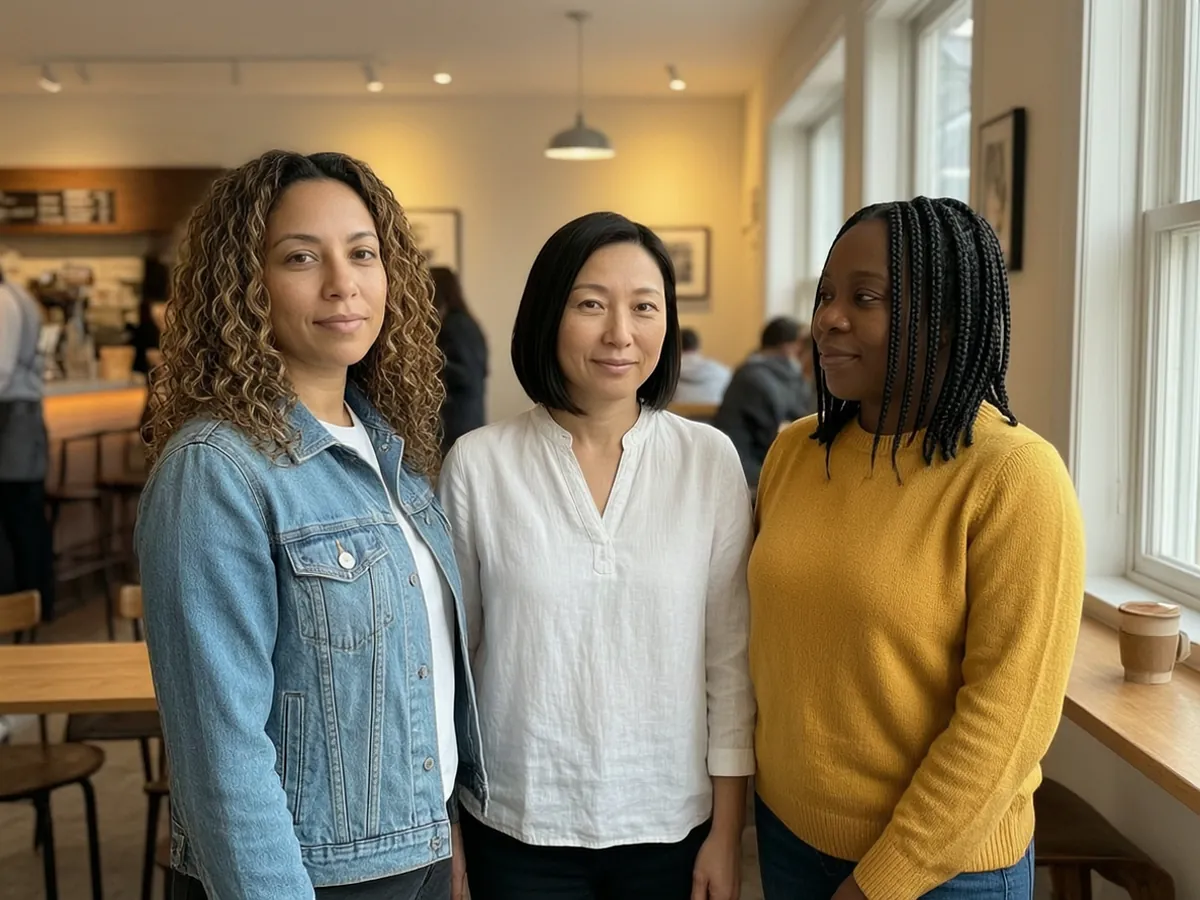
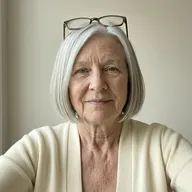
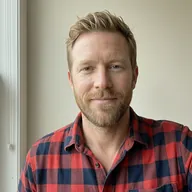
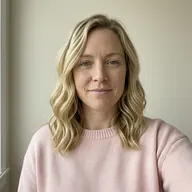
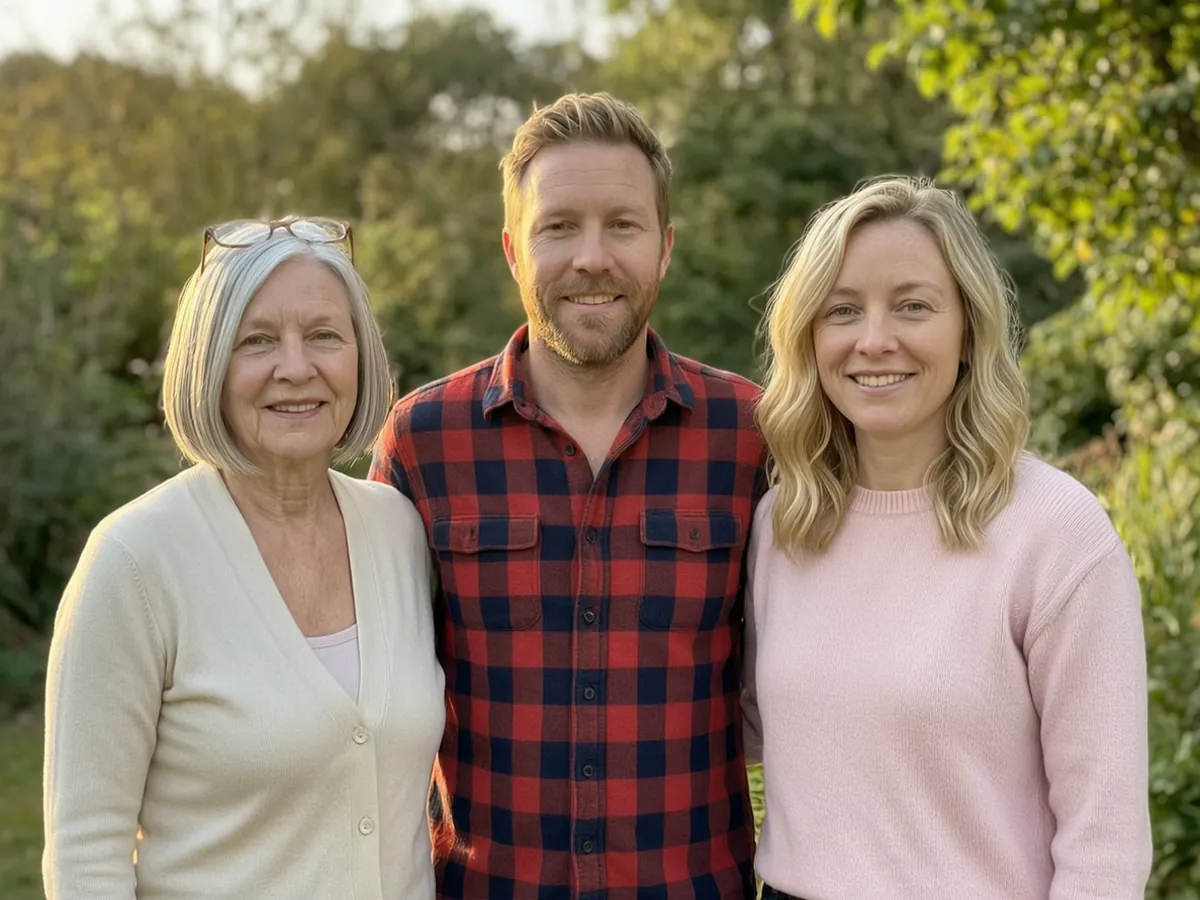
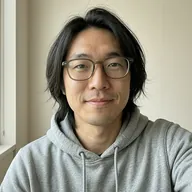
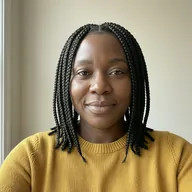
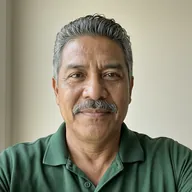
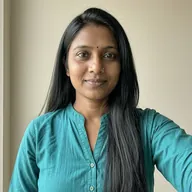
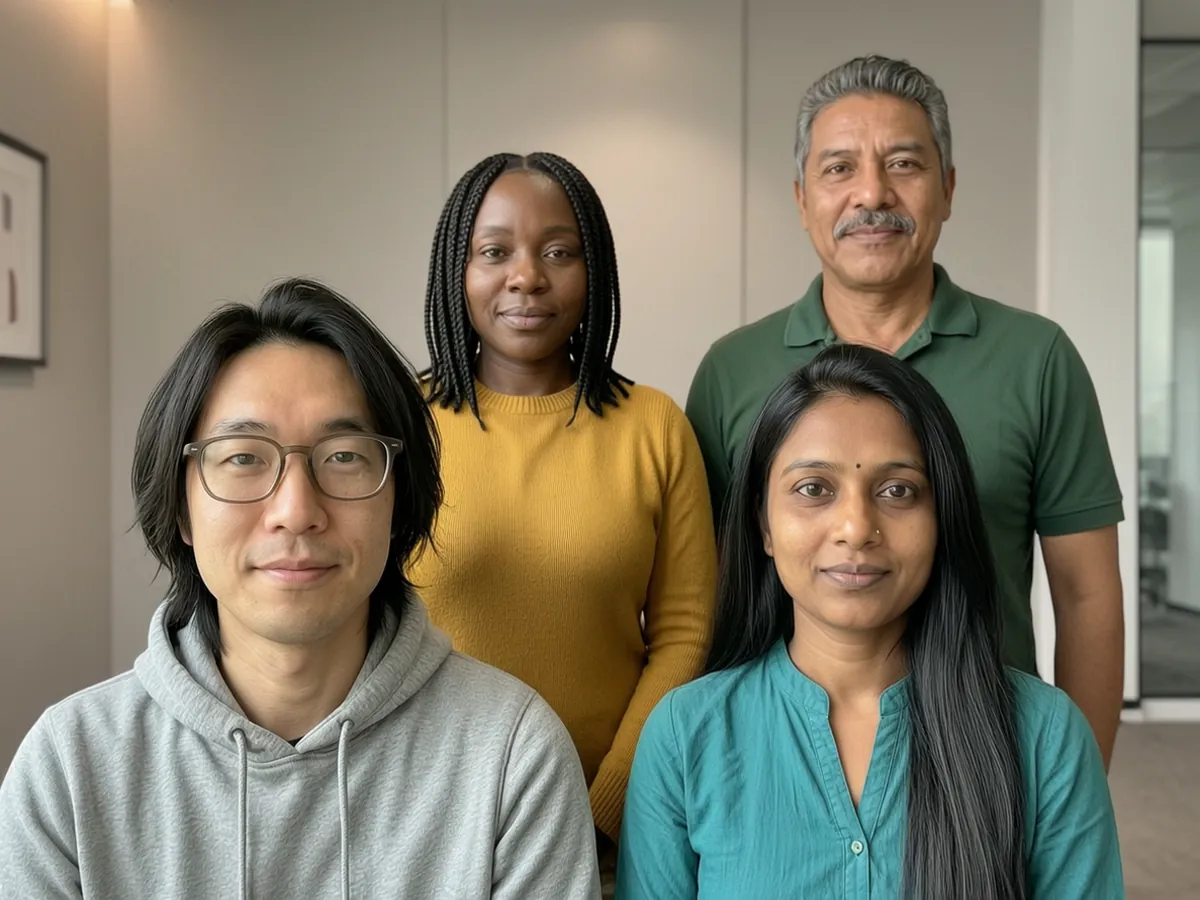
How to use the Add a Person to a Photo
- Choose a mode: Combine two people, Add me to a group photo, or Merge two group photos.
- Upload the photos in the order the labels ask for — in Add me mode, the existing group photo goes first and the person to add second.
- For Combine and Merge, pick an arrangement (single row, two rows, casual cluster, or seated and standing) and an occasion such as a birthday, graduation, reunion or team photo.
- For Add me, choose where the new person goes: next to the nearest person, at the end of the row, in the back row or in the centre.
- Pick a background, run it on the free queue or with credits, and download the result.
What people use it for
The photographer who is never in the photo
Add yourself to the group shot you took at a birthday, trip or dinner.
Family who could not attend
Put a relative who missed a wedding, reunion or holiday into the family photo.
Team and class photos
Merge two half-team shots, or add a remote colleague to the office picture.
Friends in different cities
Combine two friends from separate photos into one casual picture together.
Event recaps
Turn two partial group photos from a graduation or party into one that has everyone in it.
Tips for the best result
- Use photos with similar lighting and camera height so the people match in size and tone.
- For Add me, use a photo of the person standing or sitting in a similar pose to the group.
- Keep faces unobstructed and in focus; small, distant faces are harder to keep accurate.
- The Add me mode keeps the existing photo's layout, so arrangement is only offered for Combine and Merge.
Frequently asked questions
How many photos can I combine?
Up to four photos in one job. Combine two people uses two portraits; Add me and Merge use the group photo plus the photo of who or what is being added.
Can I add myself to a photo I took?
Yes. Choose Add me to a group photo, upload the group photo first and your own photo second, then pick where you should appear.
Will the people in the original photo be changed?
The AI aims to keep everyone already in the photo as they are, and adjusts lighting and scale so the new person fits in.
Is the Add a Person to a Photo free?
Yes. Every account gets a daily allowance of free runs on the shared free queue, with no subscription. Free jobs run when our GPUs have spare capacity, so the wait can run to hours; the queue page shows your place in line. Credits run the same job immediately.
Will my result have a logo or text on it?
No. What you download is clean, whether it ran on the free queue or with credits.
Who owns the result, and can I use it commercially?
You own the images generated for you, under our Terms of Service, subject to the rights of anyone shown in the photos you upload. Only upload photos of people who have agreed to it.
What happens to the photos I upload?
They are used only to create your result, and uploads and results are deleted on the schedule set out in the Retention section of our Privacy Policy.